---
title: How to setup Visitor ePaper badge
description: e-Paper badge setup, how to configure e-ink badge, Bluetooth pairing, NFC setup, electronic name tag sync, digital badge image upload, e-Paper display troubleshooting, wireless badge configuration, e-ink device tutorial, badge management app, customize e-paper display, step-by-step setup guide.
---
[Skip to content](https://support.getjoan.com/knowledge/how-to-setup-e-paper-badge#main-content)
[Submit a ticket](https://support.getjoan.com/knowledge/kb-tickets/new?hsLang=en)
[](http://www.getjoan.com/)
Open main navigation
Close main navigation
- [Submit a ticket](https://support.getjoan.com/knowledge/kb-tickets/new)
How can we help you?
- There are no suggestions because the search field is empty.
1. [Help Center](https://support.getjoan.com/knowledge?hsLang=en)
2. [Visitor Management](https://support.getjoan.com/knowledge/visitor-management?hsLang=en)
3. [General information](https://support.getjoan.com/knowledge/visitor-management?hsLang=en#general-information)
# How to setup Visitor ePaper badge
## How to prepare the Visitor ePaper badge for use with Visitor Management.
To setup the Visitor ePaper badge, you will first need to ensure the following settings are correctly set in your admin MyJoan account:
First, the Visitor Management functionality needs to be enabled. This can be done by following the steps described in [this knowledge base article](https://support.getjoan.com/knowledge/visitor-management-how-to-set-it-up?hsLang=en).
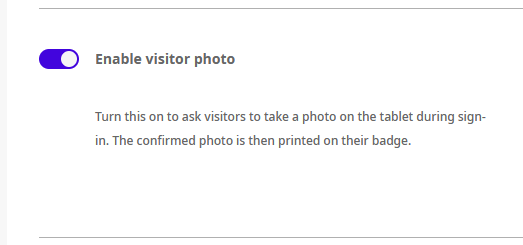
Once enabled, you can proceed to navigate to **Settings -\> Visitor -\> General Settings** -\> Toggle on the "**Enable visitor photo**" feature.
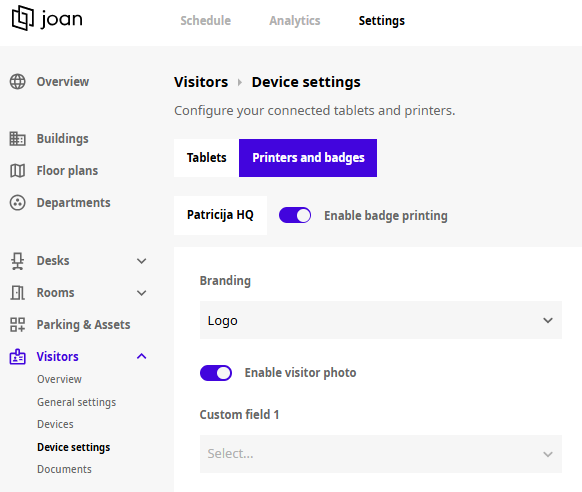
Under **Visitor -\> Device Settings** -\> select "**Printers and badges**" at the top menu -\> toggle on the "**Enable visitor photo**" if you would like the visitor to have the photo on the badge.
**Pair the device to your MyJoan account**
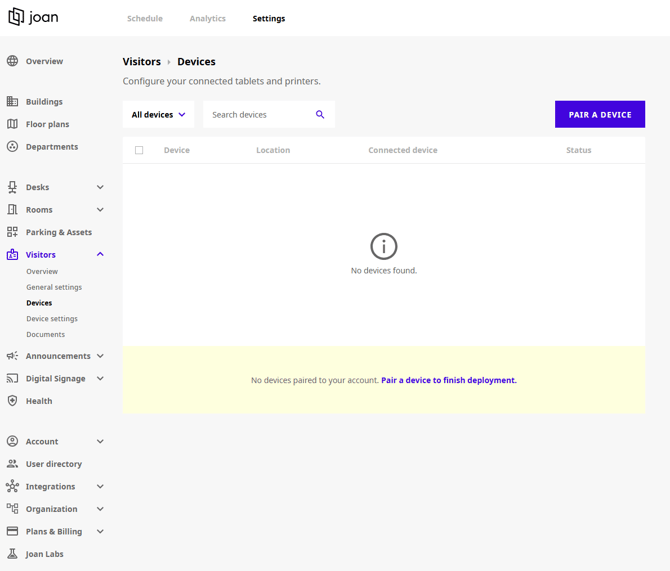
Once these settings are applied, you can begin using the Visitor ePaper badge by first turning it on by holding the button on the back of the Visitor ePaper badge. The screen will refresh to display the current battery percentage and the MAC address. In the MyJoan portal, navigate to **Settings -\> Visitor -\> Devices** -\> click the "**Pair a device**" button.
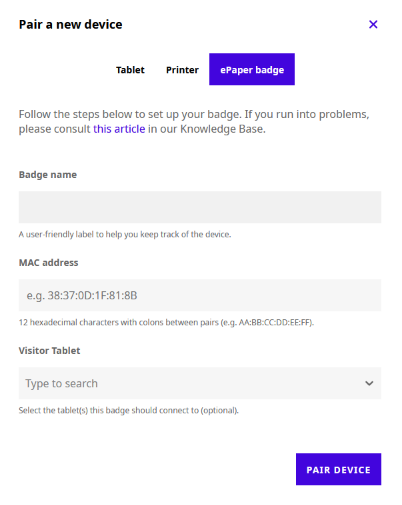
Select the Visitor ePaper badge option and choose a name for the badge so that you can identify it in your MyJoan account. Enter the MAC address displayed on the Visitor ePaper badge and click "**Pair device**". Optionally, you can already assign the tablet(s) the badge should connect to. Alternatively, you can complete this step later as well.
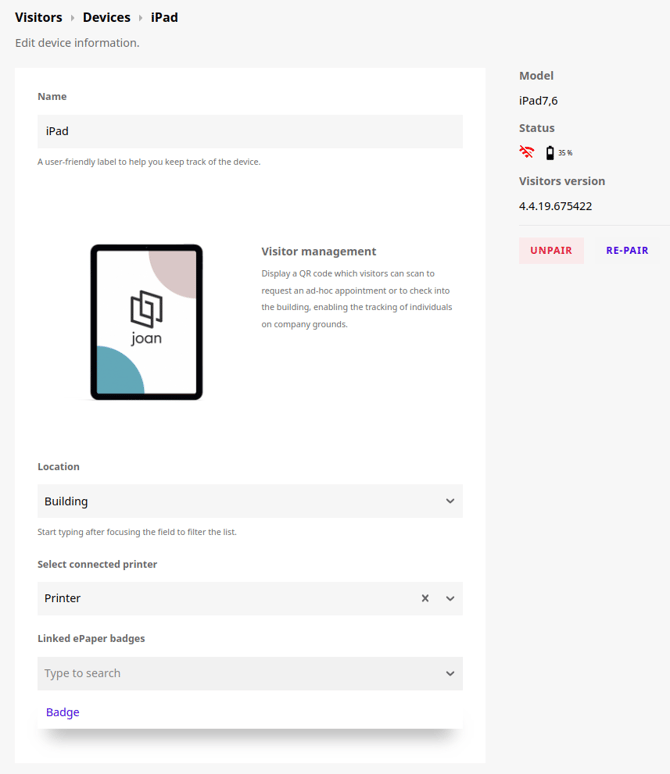
In case you did not assign a tablet in the previous step, you will need to connect the badge to the tablet you wish to use on the location. To do so, click on the tablet from the "**Devices**" menu and select the badge(s) you wish to connect with the tablet.
**How does automatic badge selection work?**
You don't need to pick a badge manually. The Visitor Management tablet assigns one automatically during check-in:
1. Make sure Bluetooth is enabled on your Visitor Management tablet.
2. The visitor completes registration on the tablet.
3. The tablet automatically selects the Visitor ePaper badge that is connected to it and currently has the best connectivity to it.
4. The selected badge starts flashing while the visitor's information is uploaded to it. This is how you can tell which badge to hand over.
5. After about 10 seconds, the badge finishes updating and is ready to be handed to the visitor.
#### **How do I know which badge is assigned to which visitor?**
**For office managers**
The visitor log under **Schedule -\> Visitors -\> Visitor log** shows which badge is assigned to each visitor.

**For admins**
You can view all paired badges in the MyJoan portal under **Settings -\> Visitor -\> Devices**. Click on an ePaper badge that is currently assigned to a visitor to see who it is assigned to.
**Returning the Visitor ePaper badge**
When the visit is over and the visitor hands over their badge, they should use the tablet to check out by tapping the "**Check-out**" button. Once the visitor checks out, the Visitor ePaper badge automatically clears and returns to its initial screen. In case the visitor forgets to sign out, you can clear the badge from the MyJoan admin portal by navigating to **Settings -\> Visitor -\> Devices** -\> click on the badge and choose "**Clear badge**".
**Battery & charging**
The badge runs on a 100 mAh battery that supports approximately 700 screen updates per charge. Because ePaper displays only consume power when the screen changes, a single charge can last weeks with daily use. When the battery needs recharging, place the badge on any Qi-compatible wireless charging pad.
*If you require assistance with the setup, feel free to reach out to support@getjoan.com*
- [Getting started](https://support.getjoan.com/knowledge/getting-started?hsLang=en#main-content)
- [General information](https://support.getjoan.com/knowledge/getting-started?hsLang=en#general-information)
- [Joan Devices](https://support.getjoan.com/knowledge/getting-started?hsLang=en#joan-devices)
- [Room management](https://support.getjoan.com/knowledge/room-management?hsLang=en#main-content)
- [Account configuration](https://support.getjoan.com/knowledge/room-management?hsLang=en#account-configuration)
- [Room configuration](https://support.getjoan.com/knowledge/room-management?hsLang=en#room-configuration)
- [Microsoft 365](https://support.getjoan.com/knowledge/room-management?hsLang=en#microsoft-365)
- [Exchange](https://support.getjoan.com/knowledge/room-management?hsLang=en#exchange)
- [Google](https://support.getjoan.com/knowledge/room-management?hsLang=en#google)
- [iCalendar](https://support.getjoan.com/knowledge/room-management?hsLang=en#icalendar)
- [Using Joan in a shared environment](https://support.getjoan.com/knowledge/room-management?hsLang=en#using-joan-in-a-shared-environment)
- [Buildings](https://support.getjoan.com/knowledge/room-management?hsLang=en#buildings)
- [Interfaces](https://support.getjoan.com/knowledge/room-management?hsLang=en#interfaces)
- [Integrations](https://support.getjoan.com/knowledge/room-management?hsLang=en#integrations)
- [Troubleshooting](https://support.getjoan.com/knowledge/room-management?hsLang=en#troubleshooting)
- [Joan devices](https://support.getjoan.com/knowledge/joan-devices?hsLang=en#main-content)
- [Device configuration](https://support.getjoan.com/knowledge/joan-devices?hsLang=en#device-configuration)
- [Device settings in the Joan portal](https://support.getjoan.com/knowledge/joan-devices?hsLang=en#device-settings-in-the-joan-portal)
- [Custom content](https://support.getjoan.com/knowledge/joan-devices?hsLang=en#custom-content)
- [Using Joan with 3rd party devices](https://support.getjoan.com/knowledge/joan-devices?hsLang=en#using-joan-with-3rd-party-devices)
- [Mounting your Joan device](https://support.getjoan.com/knowledge/joan-devices?hsLang=en#mounting-your-joan-device)
- [Device troubleshooting](https://support.getjoan.com/knowledge/joan-devices?hsLang=en#device-troubleshooting)
- [Workplace management](https://support.getjoan.com/knowledge/workplace-management?hsLang=en#main-content)
- [Account configuration](https://support.getjoan.com/knowledge/workplace-management?hsLang=en#account-configuration)
- [Additional Desk booking features](https://support.getjoan.com/knowledge/workplace-management?hsLang=en#additional-desk-booking-features)
- [Users](https://support.getjoan.com/knowledge/workplace-management?hsLang=en#users)
- [Integrations](https://support.getjoan.com/knowledge/workplace-management?hsLang=en#integrations)
- [Frequently Asked Questions](https://support.getjoan.com/knowledge/workplace-management?hsLang=en#frequently-asked-questions)
- [Visitor Management](https://support.getjoan.com/knowledge/visitor-management?hsLang=en#main-content)
- [General information](https://support.getjoan.com/knowledge/visitor-management?hsLang=en#general-information)
- [Devices](https://support.getjoan.com/knowledge/visitor-management?hsLang=en#devices)
- [How to invite your visitors?](https://support.getjoan.com/knowledge/visitor-management?hsLang=en#how-to-invite-your-visitors)
- [App permissions](https://support.getjoan.com/knowledge/visitor-management?hsLang=en#app-permissions)
- [Workplace Digital Signage](https://support.getjoan.com/knowledge/workplace-digital-signage?hsLang=en#main-content)
- [Setting Up Your Digital Signage](https://support.getjoan.com/knowledge/workplace-digital-signage?hsLang=en#setting-up-your-digital-signage)
- [Compatible Hardware and Supported Media](https://support.getjoan.com/knowledge/workplace-digital-signage?hsLang=en#compatible-hardware-and-supported-media)
- [Using Joan Workplace Digital Signage in Practice](https://support.getjoan.com/knowledge/workplace-digital-signage?hsLang=en#using-joan-workplace-digital-signage-in-practice)
- [Mobile application](https://support.getjoan.com/knowledge/mobile-application?hsLang=en)
- [Analytics](https://support.getjoan.com/knowledge/analytics?hsLang=en)
- [Plans & Billing](https://support.getjoan.com/knowledge/plans-billing?hsLang=en#main-content)
- [Subscription plans](https://support.getjoan.com/knowledge/plans-billing?hsLang=en#subscription-plans)
- [Billing information](https://support.getjoan.com/knowledge/plans-billing?hsLang=en#billing-information)
- [Prepaid subscription codes](https://support.getjoan.com/knowledge/plans-billing?hsLang=en#prepaid-subscription-codes)
- [Ordering and shipping](https://support.getjoan.com/knowledge/plans-billing?hsLang=en#ordering-and-shipping)
- [Returns and cancellations](https://support.getjoan.com/knowledge/plans-billing?hsLang=en#returns-and-cancellations)
- [Information for resellers](https://support.getjoan.com/knowledge/plans-billing?hsLang=en#information-for-resellers)
**Support Hours:**
**08:00–24:00 (CET)**
Monday–Friday
Copyright © 2025, Visionect d.o.o.