
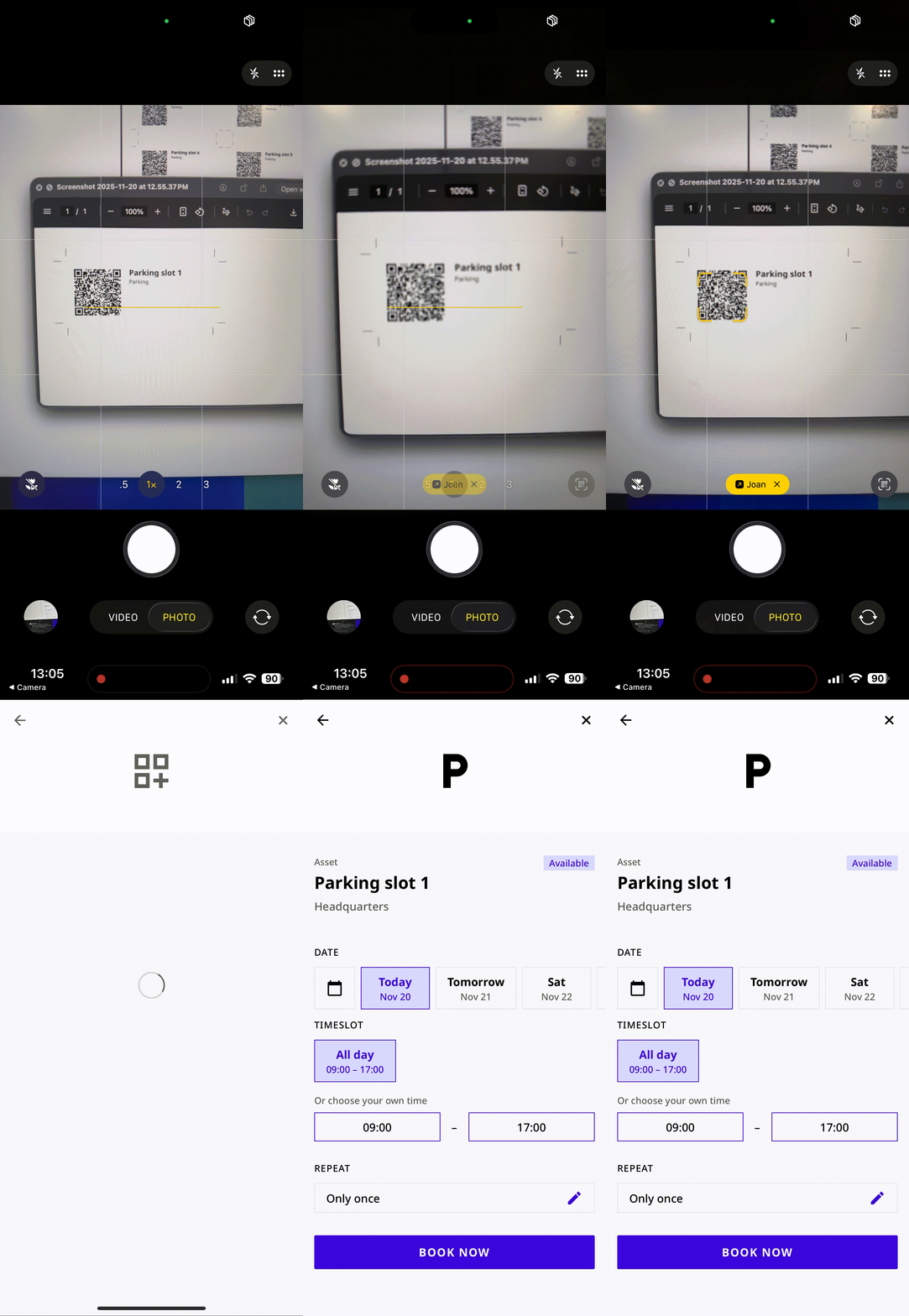
Users can simply walk up to the resource, scan the QR code with their phone’s camera, and they’ll be redirected straight to the Joan app to book it — no searching or manual navigation needed.
Who Can Enable This Feature
-
Admins
-
Office Managers
Where to Access It
-
Log in to the MyJoan portal at my.getjoan.com
-
Go to Settings > Parking & Assets
You can also use this direct link:
https://my.getjoan.com/settings/assets
How to Generate QR Codes
Generate a QR Code for a Single Parking Spot or Asset
-
In the Parking & Assets section, select the parking spot or asset you want.
-
Look at the top-right corner of the page.
-
Click Print QR codes.
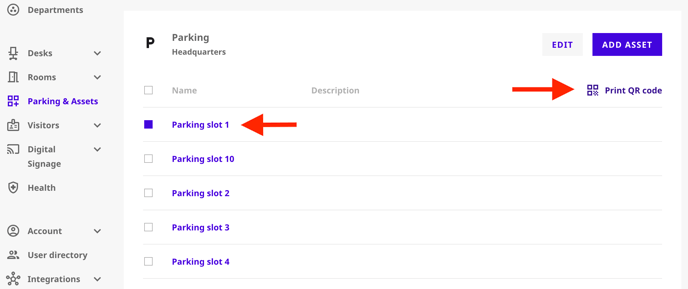
- A PDF file will automatically be generated and downloaded to your computer.
This PDF contains the QR code for the selected item, ready for printing.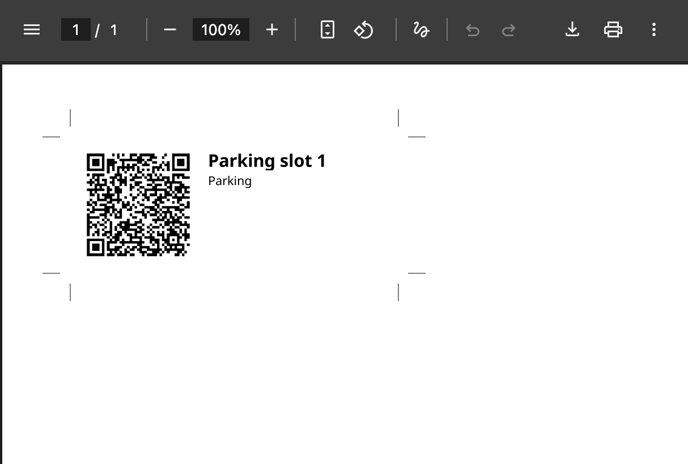
Generate QR Codes for Multiple Items at Once
If you need QR codes for several resources:
-
Select multiple parking spots or assets from the list.
-
Click Print QR codes in the top-right corner.
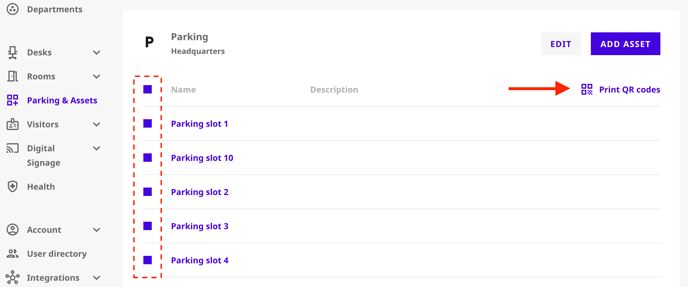
-
A single PDF file will be downloaded containing a QR code for each selected item.
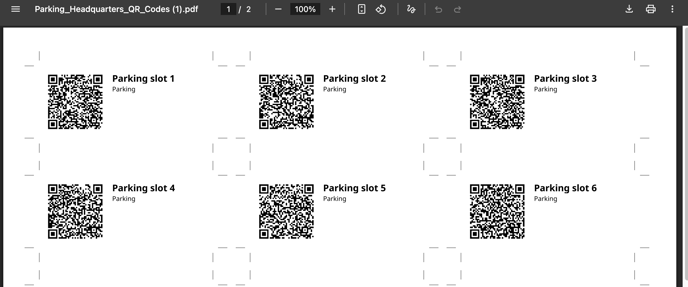
This combined PDF makes it easy to print all QR codes at once and cut them out as needed — helping you save time and reduce paper waste.
How Users Interact with the QR Codes
Once printed and placed on the physical parking spots or equipment:
-
Users scan the QR code using their phone’s default camera app.
-
Their phone automatically opens the Joan mobile app and navigates directly to the booking page for that specific resource.
-
The user can instantly reserve the parking spot or company asset with just a tap.
Benefits
-
Quick and intuitive booking experience
-
No need to search for assets in the Joan app
-
Efficient setup for facility managers
-
Eco-friendly option when generating multiple QR codes
-
Perfect for parking areas, storage rooms, shared equipment, and more
In case you need any assistance, reach out to support@getjoan.com.