
In the Rooms section, you’ll see a clean, intuitive table displaying all rooms currently assigned to your Joan devices. This centralized view allows you to easily browse and manage room availability. Simply navigate to Schedule → Rooms in the MyJoan Portal to get started.
If you do not see this option on the website, please log in as the admin, and navigate to Settings > Rooms -> Overview. Once there, make sure to check the In-app room booking (mobile & web) checkbox, to enable the feature company-wide.
To help you find the right space quickly, the view can be filtered using several criteria:
-
Building – Narrow down rooms by location
-
Floor – See only rooms on a specific level
-
Amenities – Filter by features such as whiteboards, conferencing equipment, etc.
-
Room Name – Select a specific room directly
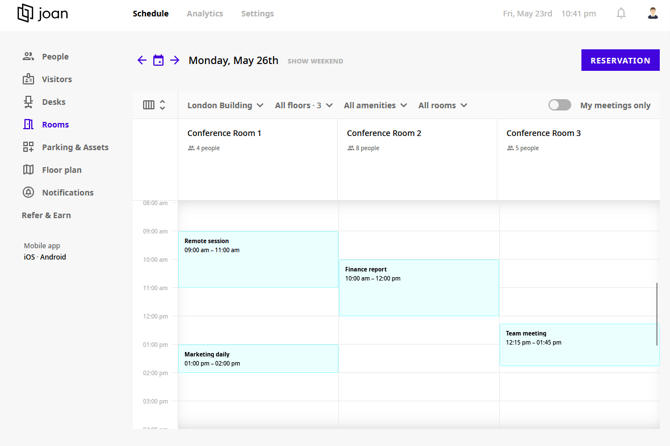
If the My meetings only option is enabled, only the meetings created by you will be visible in the calendar below.
Creating a Reservation
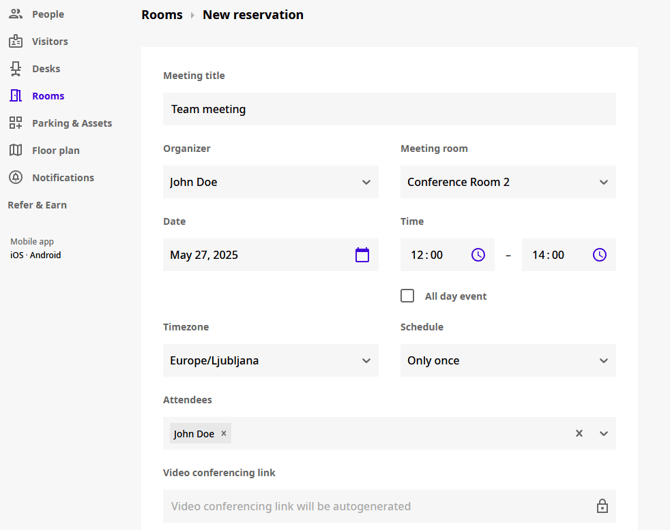
There are two simple ways to create a new room reservation from the Rooms section.
Simply click the Reservation button at the top of the interface and fill in the booking details, or, select a specific time slot directly on a room’s calendar to create a reservation on the spot.
This flexible and user-friendly layout is designed to make room scheduling as smooth as possible, whether you're managing one office or multiple locations.
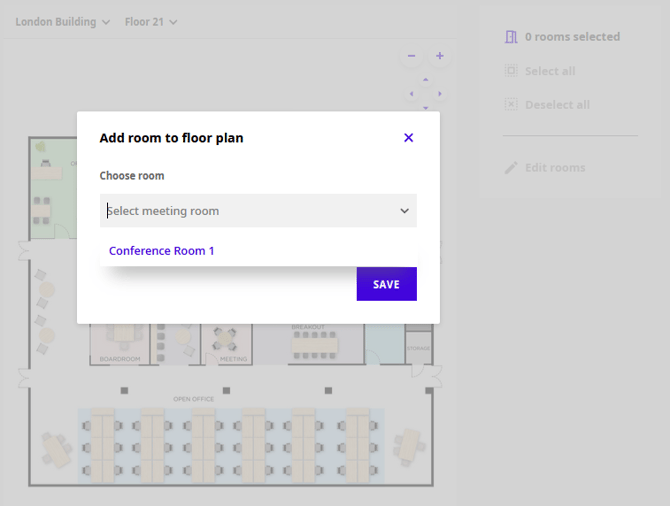
If you would like to book a room resource calendar directly from the Floor Plan, please ensure that the room resource has been correctly added to your office layout. This step is essential for enabling seamless booking functionality through the visual floor interface.
To add the room resource, navigate to Settings > Rooms > Layout.
Once you're on the layout page, locate the room on the floor map. Click on its position, and then assign the appropriate room resource calendar to that location. This will link the calendar to the specific room, allowing it to be booked directly from the Floor Plan view.
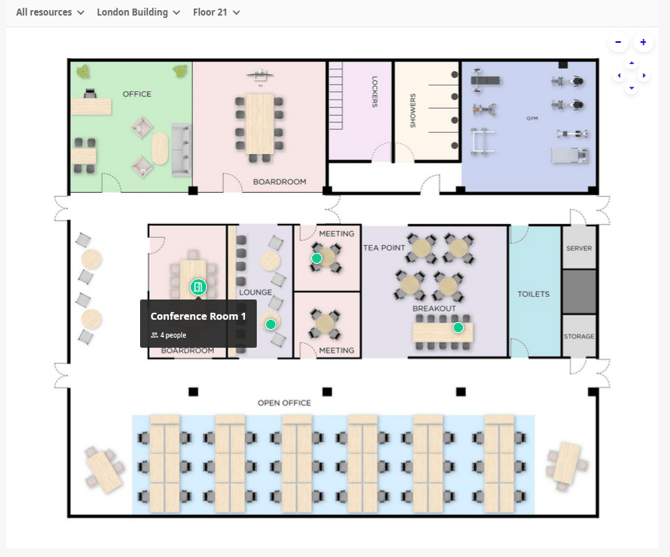
Once the room is successfully added, you can proceed with creating a room reservation under Schedule -> Floor plan.
Support
This feature works for all supported integrations, including Google, Microsoft Office 365, and Microsoft Exchange.
Data Collection & Retention
This section explains how calendar data is collected and synchronized.
Data Synchronization Policy
Calendar events from room calendars are synchronized with our internal database for a rolling window of three months into the future. Events beyond this window are not synchronized automatically. If a MyJoan user initiates a calendar action outside this timeframe, synchronization is performed on demand at that time.
Data Retention Policy
Data processed in connection with the Room Booking feature is retained only for as long as necessary to provide the service and perform related analytics. In any event, it is retained no longer than 12 months after the end of service use, unless a different retention period is required by law.
Data deletion
You can request deletion of your data at any time by contacting our support team at support@getjoan.com. Once a deletion request is processed:
- all existing room booking entries for the user are removed from the operational database,
- upcoming events are re-synced according to the active synchronization policy.
Analytics data is not deleted automatically, but it can be removed manually by authorized personnel upon request.
Types of Data Collected
Room booking data: title, summary, start and end time, status, visibility, conference link, and all-day indicator.
Attendee data: email address, full name, and participation status.
All data we collect and process is encrypted at rest and in transit. For more information, see our Privacy Policy.
If you encounter any issues, please contact support@getjoan.com.