
In order to upload a custom image to your ePaper badge, make sure you have paired and connected your ePaper badge as described in this knowledge base article. And also paired a Visitor Management tablet as described in this knowledge base article.
Once the ePaper badge is prepared, ensure the tablet from which you're uploading the picture has the Joan Workplace app installed and Bluetooth enabled. Follow these steps to upload the custom content:
-
Navigate to Settings -> Visitors -> Devices
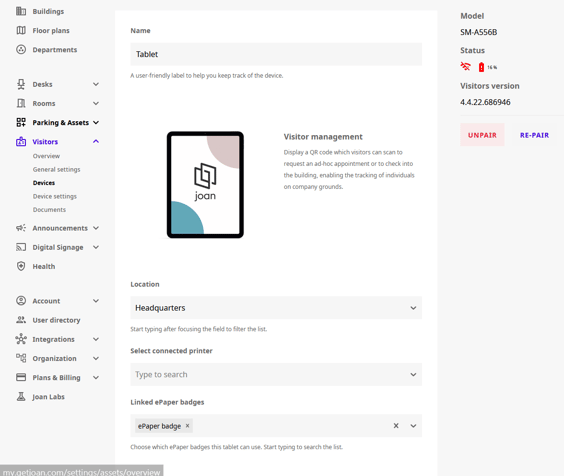
- Click on the tablet you will use to upload the picture. Link the badge by selecting it from the drop down menu and click the "Save" button.
-
Return to the "Devices" tab and click on the ePaper badge to which you wish to upload the custom content
- On the right, click the blue "Upload custom content" button.
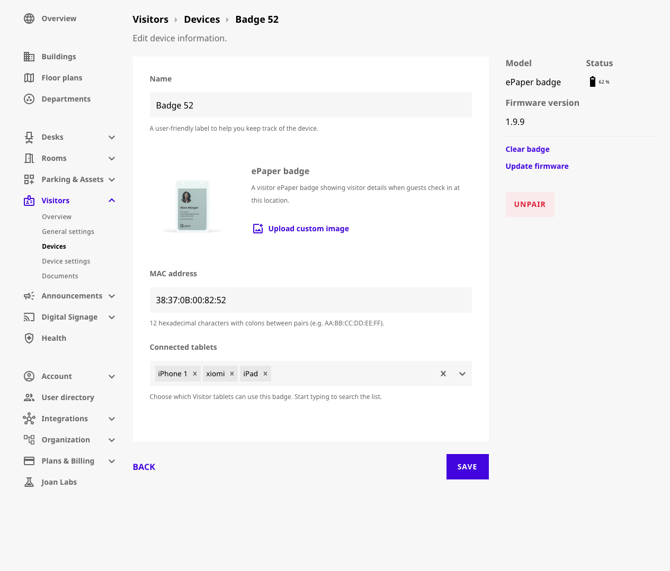
- Important: the connected tablet needs to be turned on with the Joan app open and Bluetooth enabled before you click the Upload button.
Once the above is ensured, upload the picture by select it's formatting and clicking "Upload"
For best image
- 528 × 768 px
- We suggest to use only Black (#000000), White (#FFFFFF), Yellow (#FFFF00), and Red (#FF0000) colors to guarantee maximum sharpness.
- Color Warning: Non-native colors are rendered using dithering (dot patterns), which can cause a grainy appearance.
It can take up to 20 seconds for the badge to fully update and display the custom image. If you encounter any issues or require further assistance, feel free to reach out to support@getjoan.com